Upload & video
Photos and video, together.
Create an album, then bring in your photos and clips. Drag in a few, or send big batches. Your videos play right in the album.
However you work.

Drag and drop.
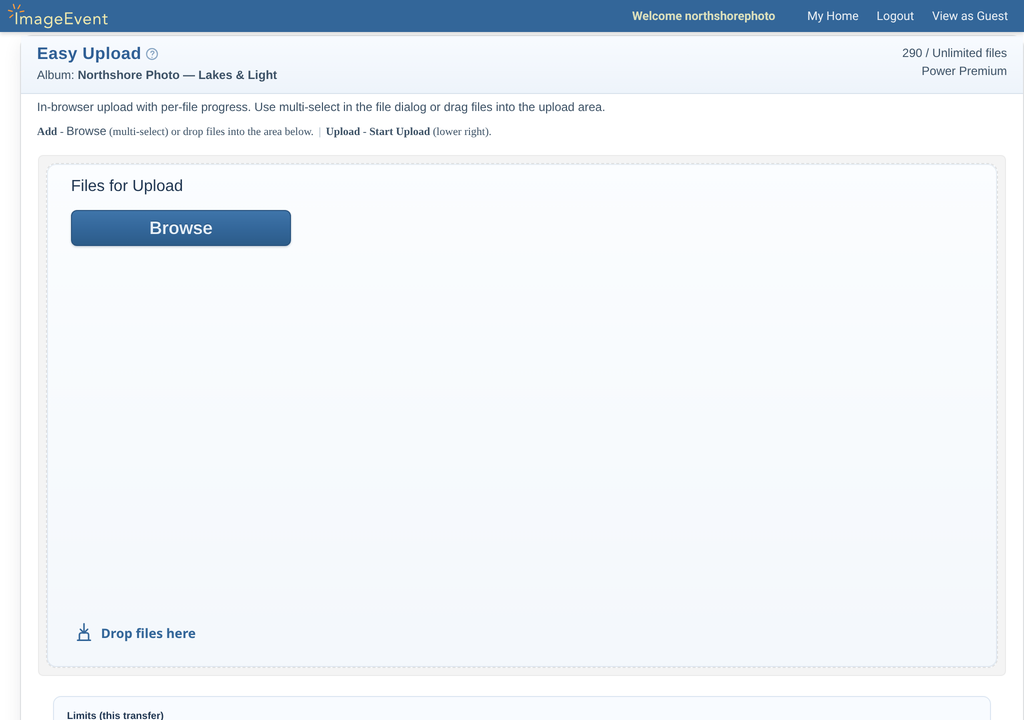
Easy Upload works right in your browser, with progress for every file.
Easy Upload
Big batches, too.
Mega Upload takes larger batches. FTP handles high-volume transfers.
Mega and FTP
Every kind of file.
JPEG, HEIC, RAW, TIFF, and PSD. Video and PDFs, too.
File types
Video that plays in place.
Clips sit beside your photos, in HDR up to 4K and 8K, at any length.
Video sizesVideo sizes follow your upload.
Upload in higher resolution, and guests get bigger viewing sizes.

Upload an HDR or Dolby Vision clip and ImageEvent always makes an HDR10 version too.
Frames drawn to scale: 720p, 1080p, 4K, and 8K.
How it works.
Create an album
Uploads always go into an album, so make one first.
Pick a way in
Easy Upload for most days. Mega Upload or FTP for big batches. Or send guests an Upload link.
Add your files
Browse or drop in photos, RAW files, video, and PDFs.
Start Upload
Files appear in the album, and videos get their viewing sizes.
All the options.
Every setting, with step-by-step how-tos.
Easy UploadBrowse or drop files right in your browser.
- Open the album you created and click Easy Upload.
- Click Browse (pick several at once) or drag files onto Drop files here.
- Click Start Upload at the lower right. Each file shows its progress.
The page shows which album the files go into, so there’s nothing else to fill in.
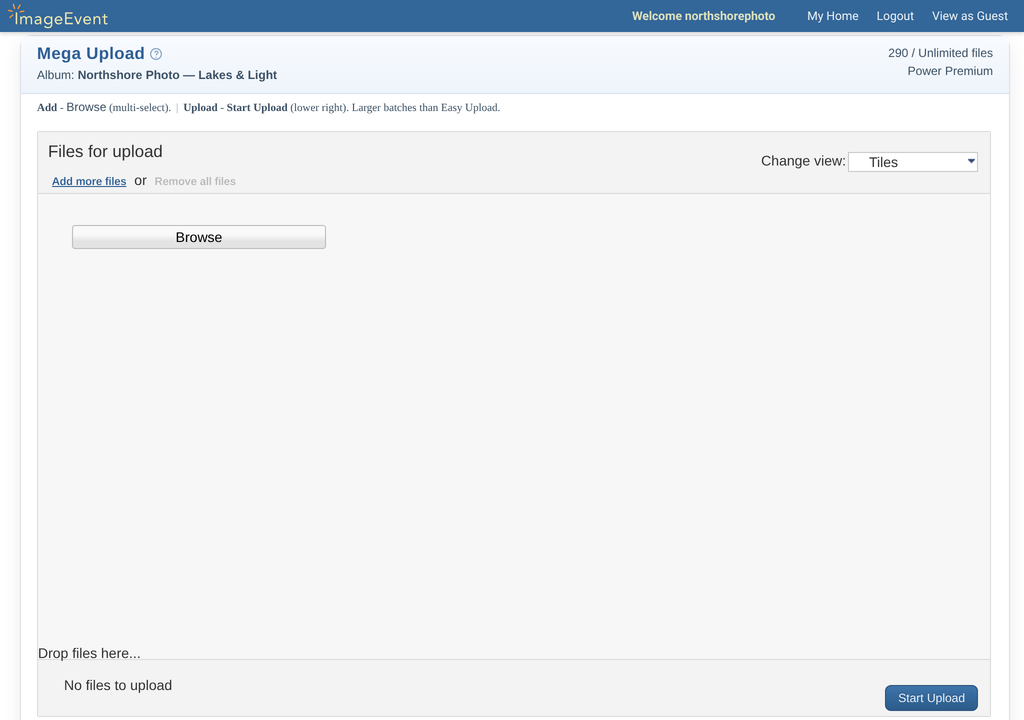
Mega UploadFor larger batches.
- In your album, click Mega Upload.
- Click Browse or drop files in. Use Add more files to keep going.
- Click Start Upload.
You can switch the list to Tiles, or clear it with Remove all files.
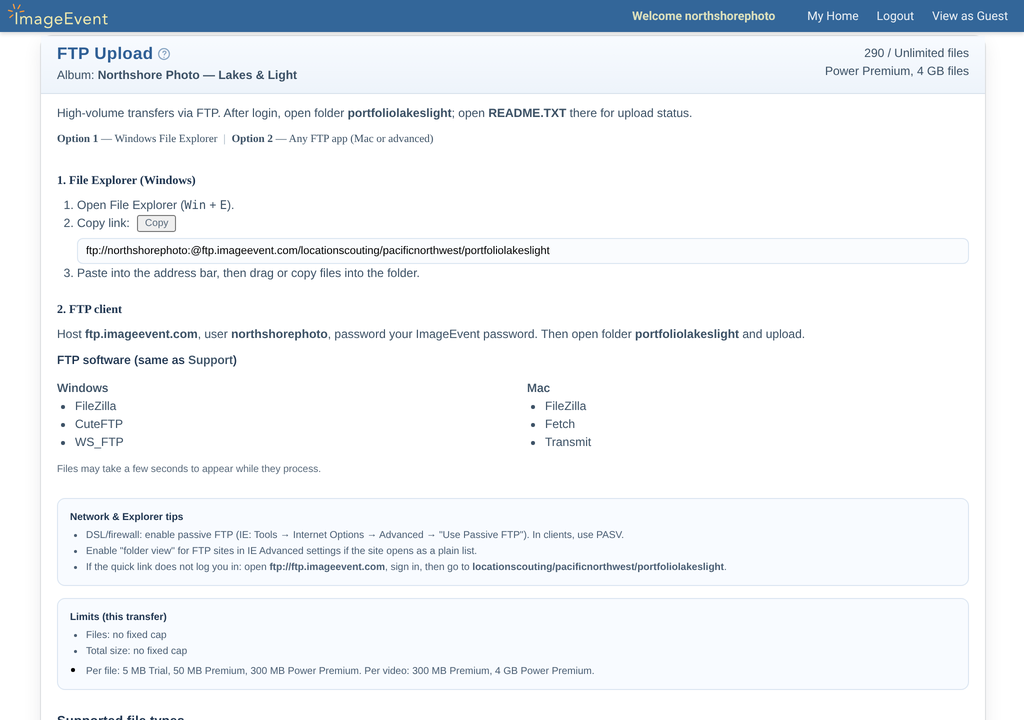
FTP UploadHigh-volume transfers with File Explorer or an FTP app.
- In your album, click FTP Upload for your connection details.
- Connect to
ftp.imageevent.comwith your ImageEvent username and password. - Open the folder for your album and upload. Its
README.TXTshows upload status.
- Windows: File Explorer, FileZilla, CuteFTP, or WS_FTP.
- Mac: FileZilla, Fetch, or Transmit.
- Files may take a few seconds to appear while they process.
- Trouble connecting? Try passive (PASV) mode in your FTP app.
Guest UploadsLet guests, clients, and teammates add photos and videos.
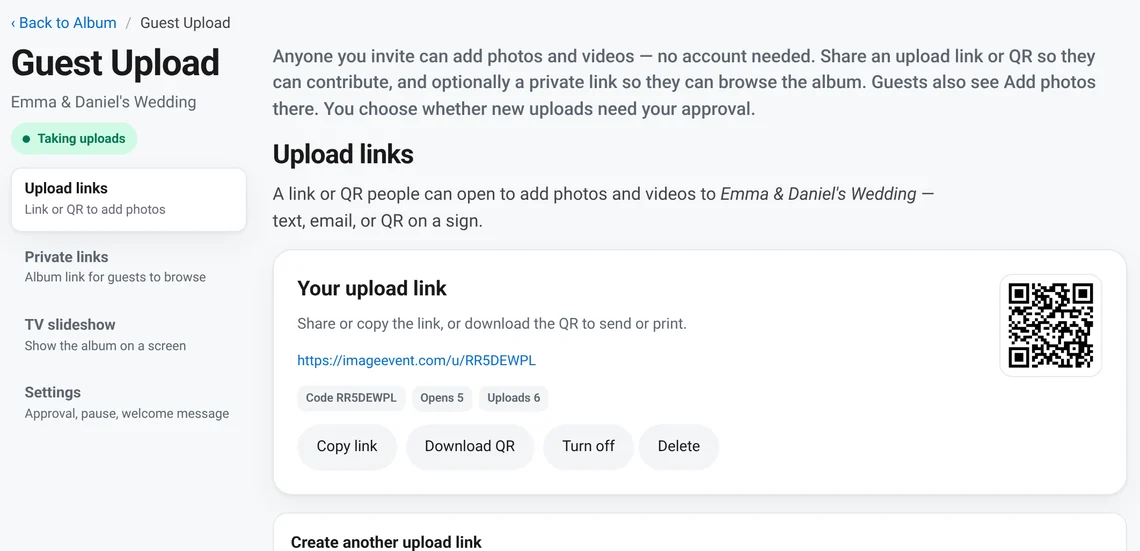
Guest Uploads lets other people add photos and videos to your album with a link or a QR code. They don’t need an account or an app. Everything lands in one album, next to your own photos.
- Open your album and click Guest Upload in the Album Bar.
- On Upload links, you get an Upload link and a QR code. Click Copy link or Download QR.
- Send the link by text or email, or print the QR code on a sign, a card, or an invitation.
- Guests open it in a browser on any phone, tablet, or computer, enter their name if you asked for one, and choose photos and videos.
Other things you can do on the Guest Upload page:
- Create another to make a separate Upload link, for example for a different group. Each link shows how many times it was opened and how many uploads it brought in.
- Turn off a link to stop it working, or Delete it.
- Settings → Taking uploads: uncheck it to pause new uploads without deleting your links.
- Settings → Welcome message & name: add a welcome line for the upload page, and choose whether guests must give their name (Required) or not (Optional). A name is used to credit each photo.
- Private links: also give guests a Private Link, if you want them to browse the album. About Private Links.
Guest Uploads works with the Enhanced layout. Set Album layout to Enhanced in Global Settings. About layouts
Approve guest uploadsReview what guests added, then approve or reject.
Under Settings → When a guest uploads, choose Approve first to review each upload before it appears, or Show right away to let photos and videos go into the album after processing.
- When uploads are waiting, the Album Bar shows Approve with a count. You can also click Review uploads on the Guest Upload page.
- Tick the photos you want, or tick Select all.
- Click Approve selected or Reject selected. Approve all and Reject all do the whole list at once.
- Approved photos join the album. Rejected ones are removed.
- Waiting uploads also show on your Home page and on folder pages.
- We email you at your ImageEvent account address when new uploads are waiting, and again daily while they still are.
- Guests who asked for email get a note the first time any of their photos are approved.
- Each guest photo shows who it is from, right under the picture.
TV slideshowPlay the album full screen on a TV or spare laptop.
A TV link plays your album full screen, photos and videos, with a QR code in the corner so everyone in the room can add theirs. The TV checks for new photos every 10 seconds, so guest uploads show up while the party is still going.
- Open your album, click Guest Upload, then choose TV slideshow.
- Click Preview here to check the loop on your computer. It opens while you are signed in.
- Click Copy link and open the TV link on a TV or spare laptop. It needs no login, so use a screen that is not signed in to your account.
- Click Download QR if you want the TV link as a QR code.
Use Create another for a second TV link. Turn off or Delete a link when the event is over.
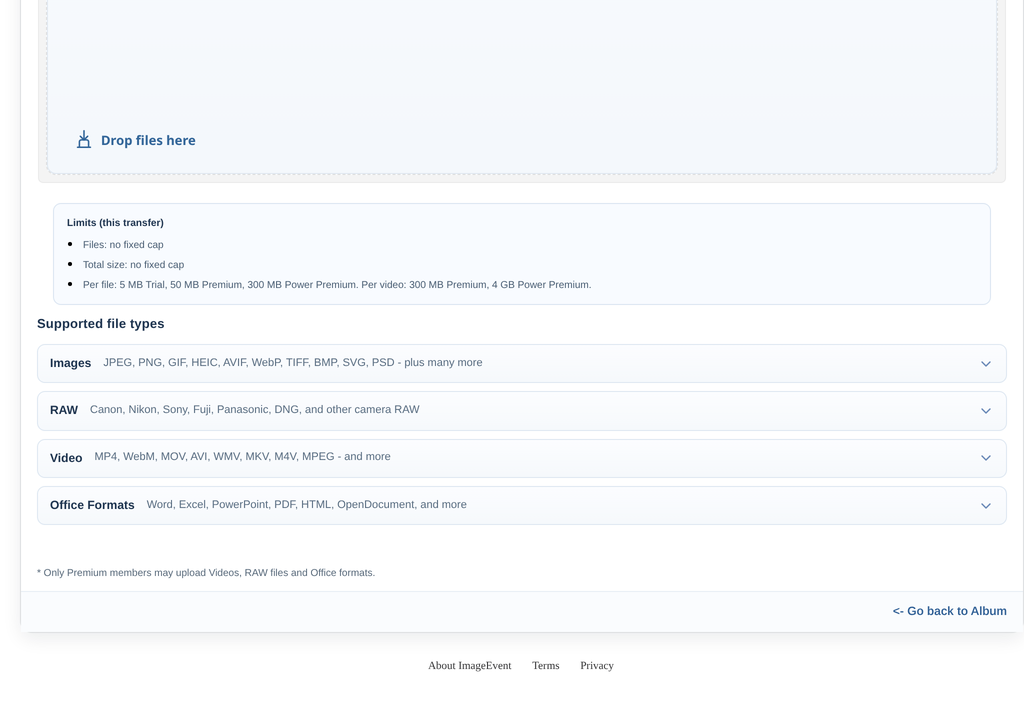
File types and limitsPhotos, RAW, video, and documents.
- Images
- JPEG, PNG, GIF, HEIC, AVIF, WebP, TIFF, BMP, SVG, PSD, and more
- RAW
- Canon, Nikon, Sony, Fuji, Panasonic, DNG, and more
- Video
- MP4, WebM, MOV, AVI, WMV, MKV, M4V, MPEG, and more
- Office
- Word, Excel, PowerPoint, PDF, HTML, OpenDocument, and more
Size per file
- Premium
- Images up to 50 MB per file
- Video up to 300 MB per file
- Power Premium
- Images up to 300 MB per file
- Video up to 4 GB per file
How many files
- Trial
- 21 files, for 21 days
- Premium
- 1,500 files
- Add more in blocks of 1,500
- Power Premium
- Unlimited
Premium and Power Premium include RAW and common document formats. The upload page shows your limits and file types. Compare plans.
Watching videoSpeed, fullscreen, picture-in-picture, and more.
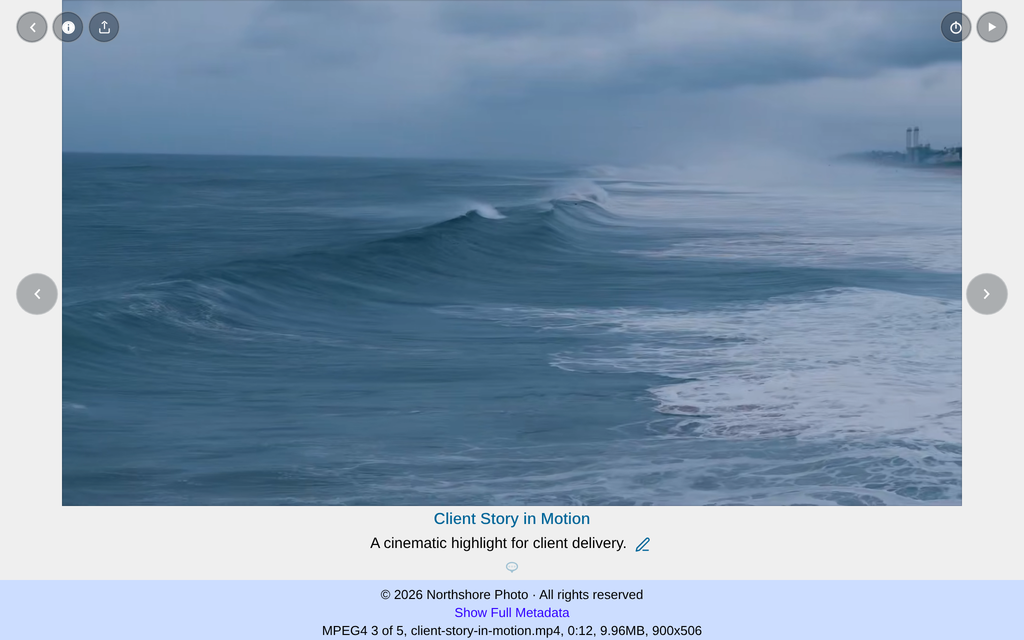
Videos play right in the album. The player has volume, a timeline, Settings, Cast, picture-in-picture, and fullscreen.
Settings → Speed: 0.2×, 0.5×, 0.7×, 1×, 1.2×, 1.5×, 1.7×, or 2×.
HDR video and video lengthHDR, 4K and 8K, with no limit on how long a video can be.
Upload 4K and 8K HDR video to the same albums as your photos. There is no limit on how long a video can be. Full events and long recordings are welcome, and only the per-file size limit applies.
- Upload the video with Easy Upload, Mega Upload, or FTP, like any other file.
- ImageEvent prepares the viewing sizes in the background: 720p and 1080p, plus 4K on Premium and 8K on Power Premium when your source supports it.
- Open the video in its album to play it, or open Video Properties to see every size.
- HDR: HDR10 and Dolby Vision uploads are streamed as HDR10. Screens without HDR get an SDR version, made automatically.
- Plans: 4K on Premium and 8K on Power Premium. Per-file limit for video: 300 MB on Premium and 4 GB on Power Premium.
- Captions: if your file has caption tracks, guests can pick one in the player.
- Downloads: when downloads are allowed, you can copy a link or download any size from Video Properties.
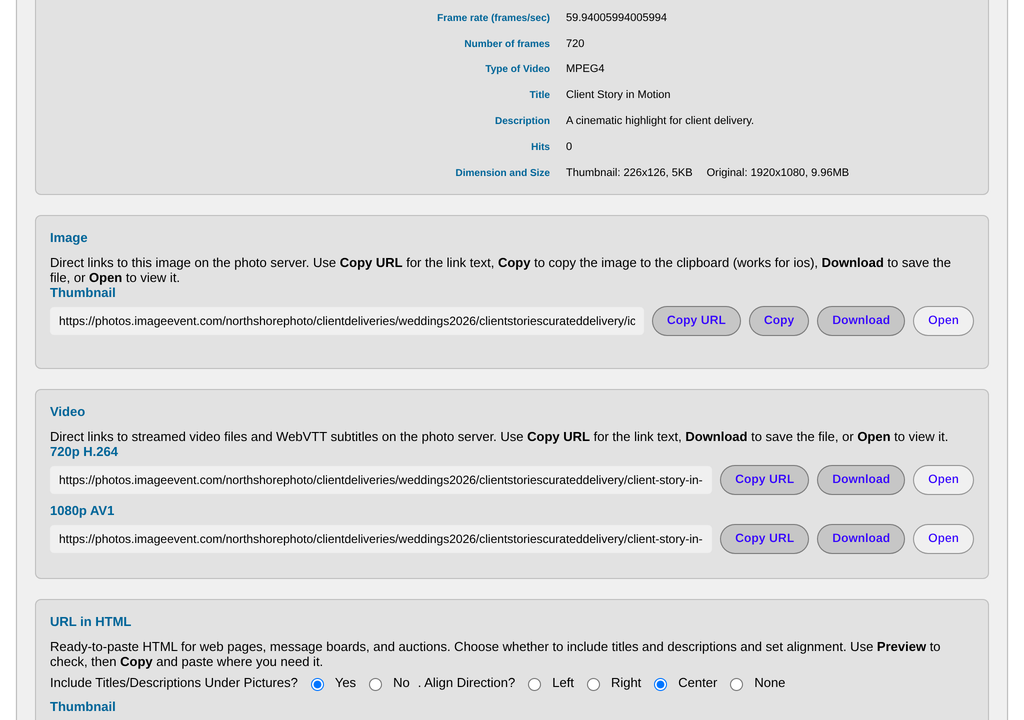
Video PropertiesThe viewing sizes for each clip, with links.
Open Video Properties from any video to see its sizes, such as 720p H.264 and 1080p AV1. Each row has Copy URL, Download, and Open.
Higher-resolution uploads can list more sizes. See how sizes follow your upload.
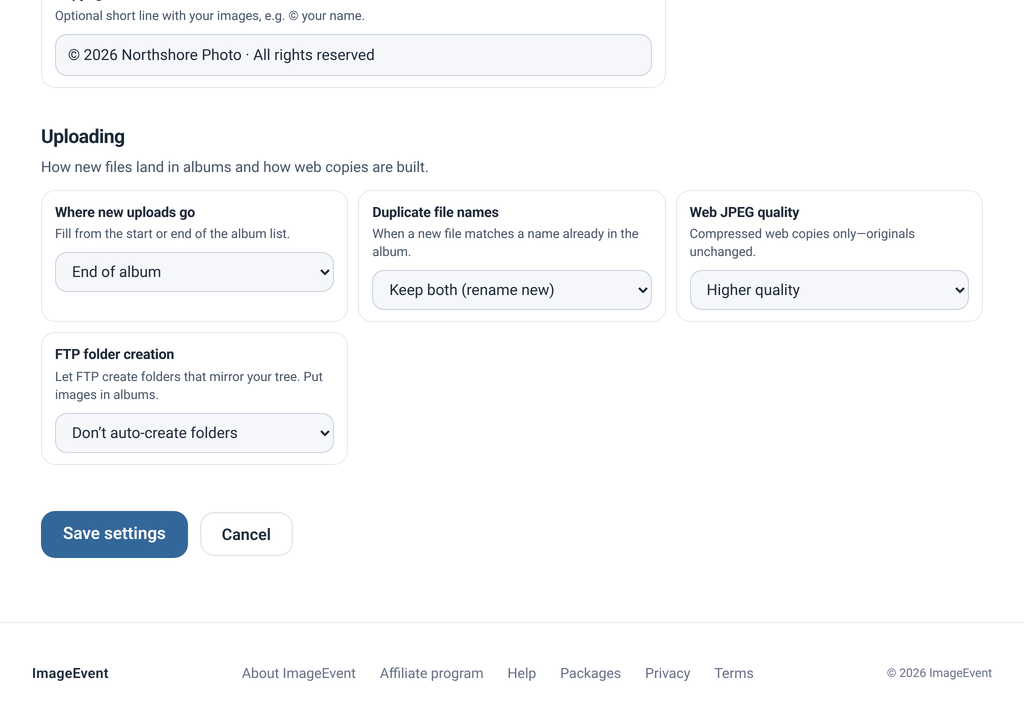
Upload defaultsWhere new photos go, matching names, and web quality.
In Global Settings → Uploading:
- Where new uploads go: Start of album or End of album.
- Duplicate file names: Replace existing or Keep both (rename new).
- Web JPEG quality: from Smallest files to Highest quality. It affects the web copies, not your originals.
- FTP folder creation.