Albums & viewing
Your photos, shown big.
Clean albums that put the photo first. Guests open your work large, and the full Original is there when they want every pixel.
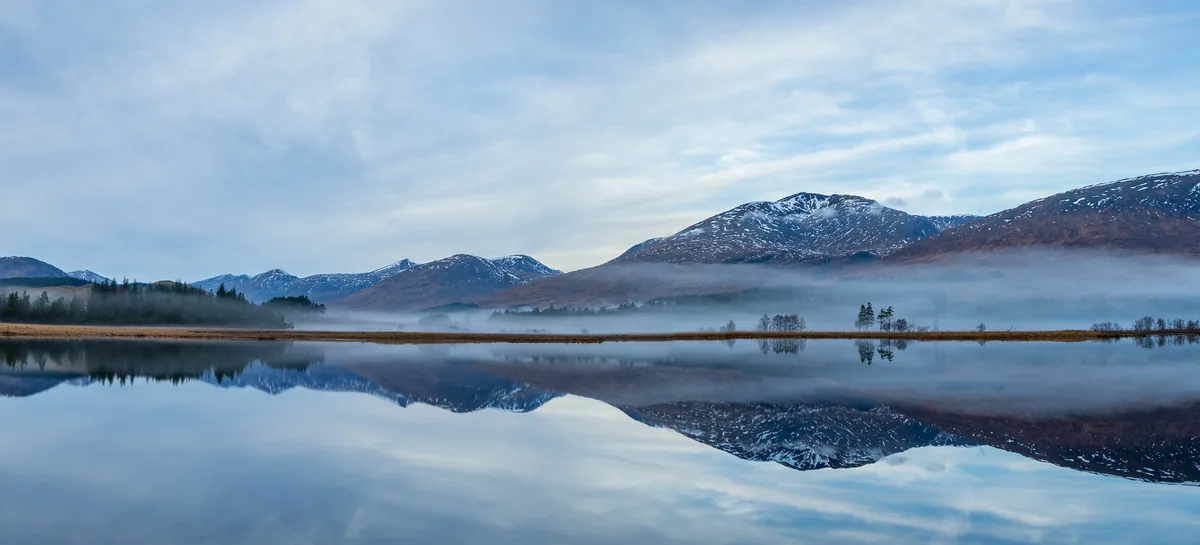
Made for looking.
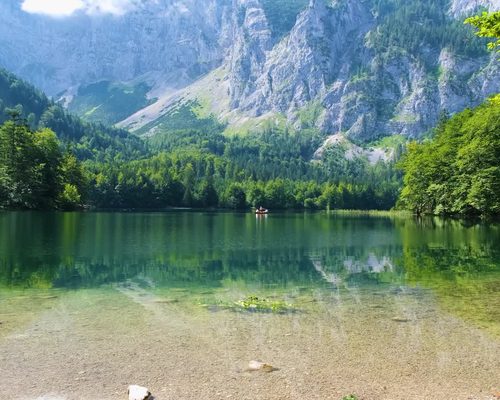
Clean for guests.
Guests see your photos, not your editing tools.
Compare the views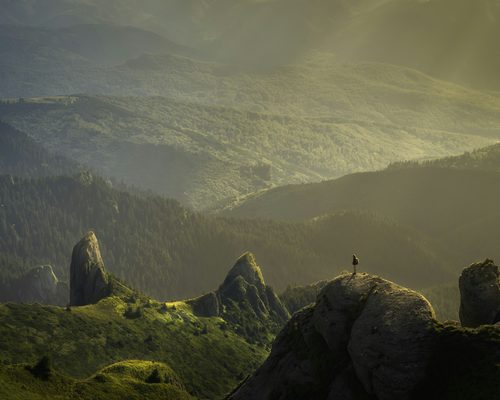
Big when it counts.
Five viewing sizes, from Small to XX-Large. You choose which ones guests can open.
Try the sizes
Every pixel, on request.
Offer the Original, the exact file you uploaded. Web copies never touch it.
About the Original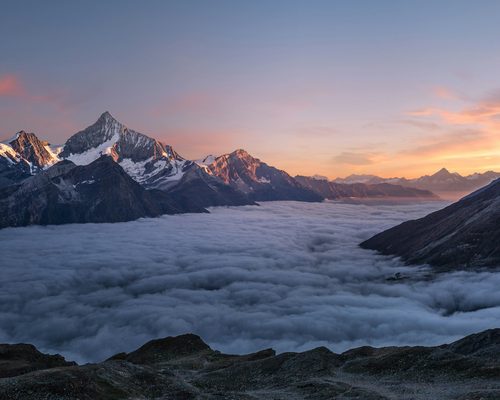
Your library, on your computer.
Premium and higher can download every Original in the account—one Start on Windows or Mac.
Download your filesFive sizes. Plus the Original.
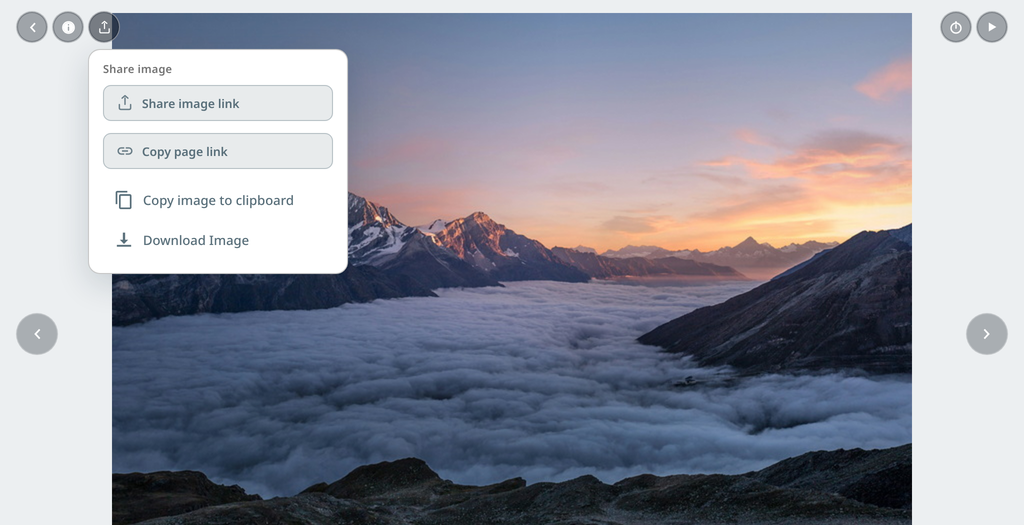
Guests switch sizes right under the photo. Try it.
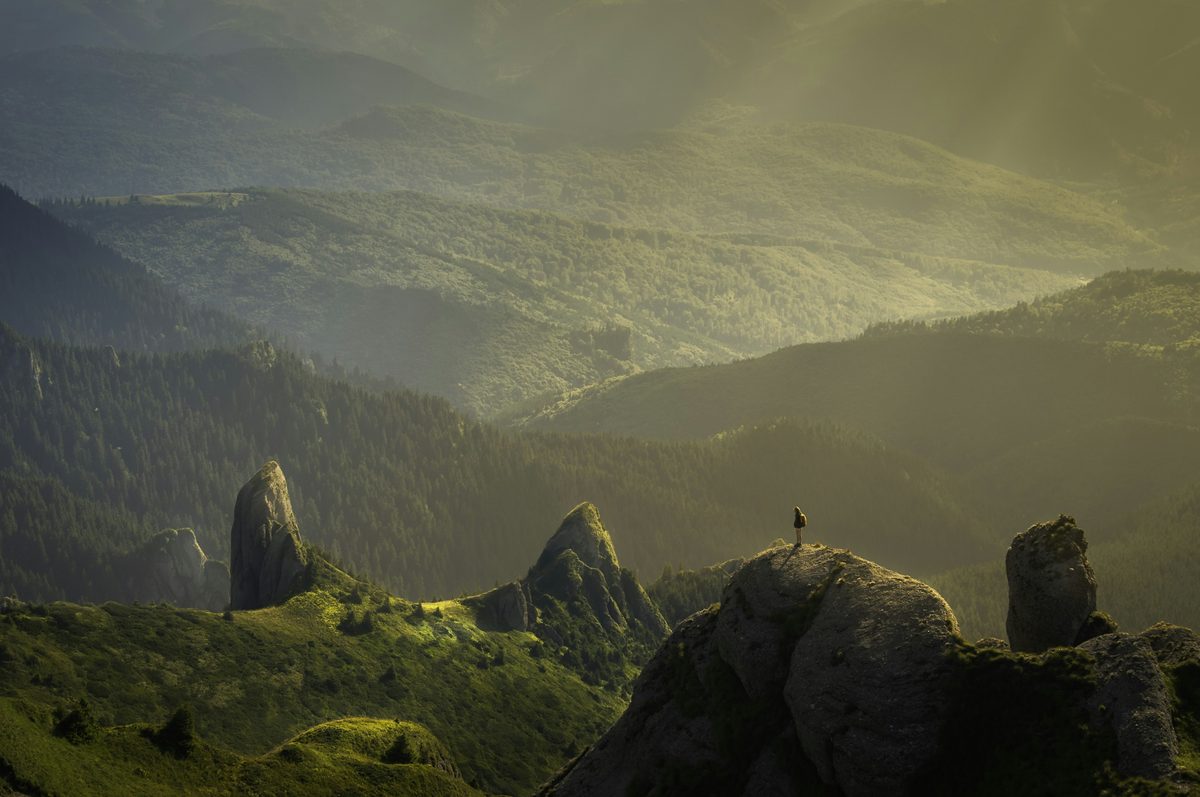
Large, usually the first size guests see800 × 531 · fits within 800 × 600
Mountain Light. Each size fits within the limits set in Edit Album. Image Properties shows a photo’s exact sizes.
How it works.
Create an album
Give it a title. Your uploads go into it.
Upload
Add photos and video. ImageEvent builds the viewing sizes for you.
Choose sizes
In Edit Album, pick the sizes guests can open, including the Original.
Check, then share
Use View as Guest to see it their way, then send the link.
All the options.
Every setting, with step-by-step how-tos.
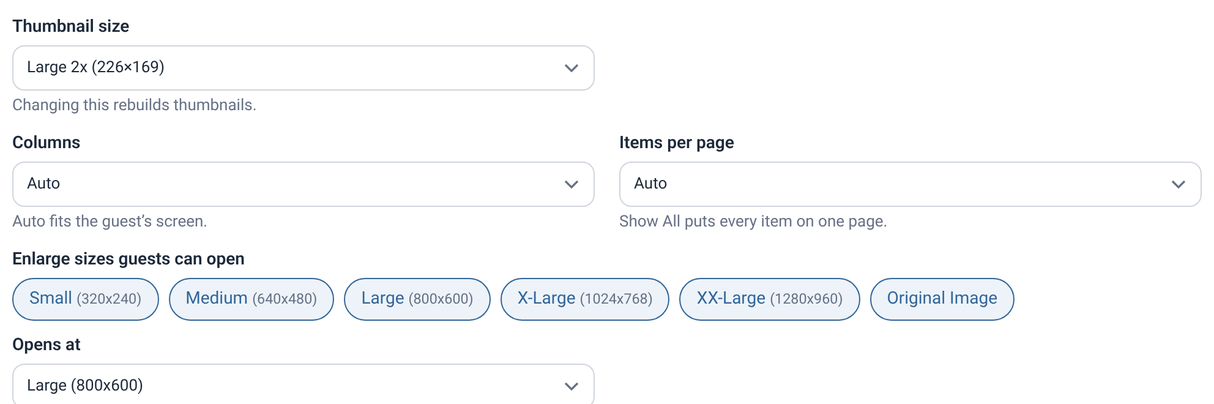
Viewing sizes and Other SizesChoose which sizes guests can open, and which one opens first.
- Open your album and click Edit Album.
- Under Enlarge sizes, check the sizes you want to offer. Check all of them for every zoom size.
- Pick a Default enlarge size. Large (800×600) is the usual choice.
- Click Update Album.
Guests then see Other Sizes under each photo and can switch without leaving the page.
- Small
- 320×240
- Medium
- 640×480
- Large
- 800×600
- usual default
- X-Large
- 1024×768
- XX-Large
- 1280×960
- Original Image
- full uploaded file
The Original and web qualityShow the full file. Keep web copies crisp.
Check Original Image in Enlarge sizes and guests can open the exact file you uploaded. It fills the browser window.
Small through XX-Large are lighter copies ImageEvent builds for fast viewing. You choose how crisp they are:
- Open Global Settings (home menu or Tools).
- Under Uploading, set Web JPEG quality: Smallest files, Normal, Higher quality, or Highest quality.
As the setting says: “Compressed web copies only—originals unchanged.”
Download your files (Full Archive)Premium and Power Premium: every Original, sorted into your folders and albums, on your computer.
Full Archive brings every Original in your account home in one download: photos, video, and documents, sorted into your folders and albums. It is included with Premium and Power Premium.
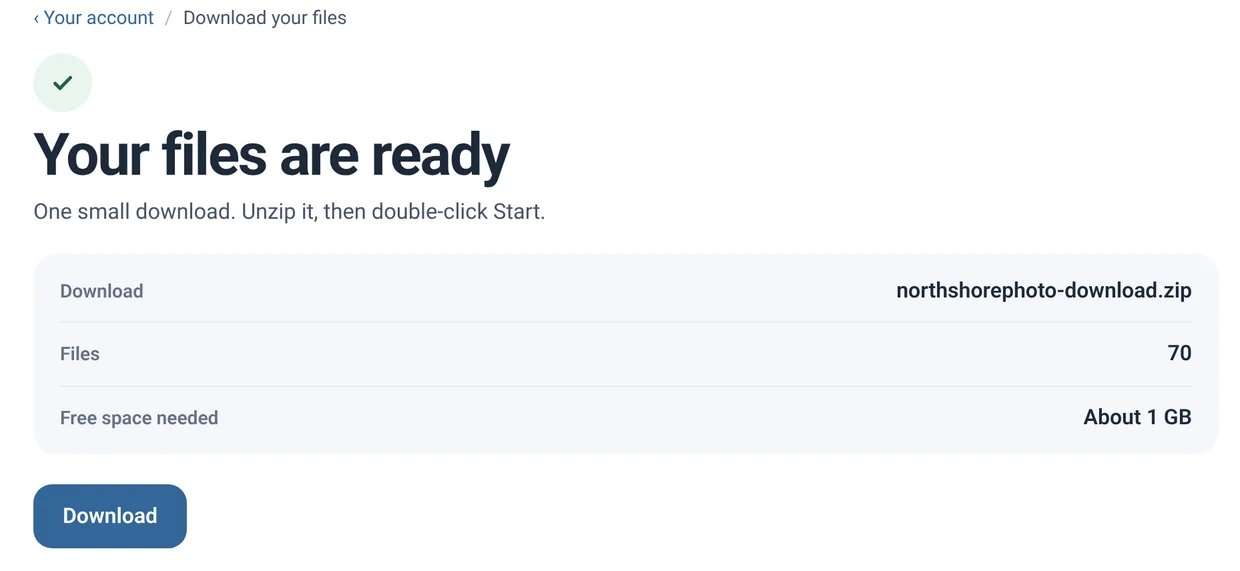
- Open Tools, then Download your files.
- Click Make my download. ImageEvent builds a small starter pack. Come back when it is ready.
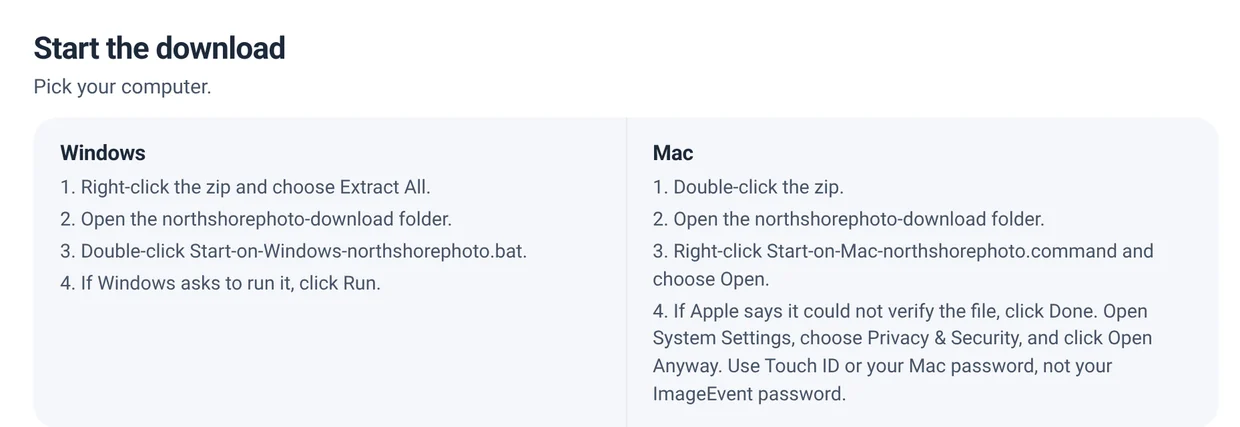
- Download the zip and unzip it. It holds a Start file for Windows and one for Mac.
- Double-click Start. Your Originals begin to save in the folder where you run it.
- To pause, close the window. Double-click Start again and it continues. Files you already have are skipped.
The page gives you the steps for Windows and for Mac, right next to your download.
- Your folders, your names. Your folders and albums become folders on your computer, named after their web addresses. Your files keep their file names. For example:
your-account/clientdeliveries/weddings2026/… - You need enough free space for all of your Originals.
- A very large account can take several days to download.
- This is separate from downloading one album or a few selected items. Download a few, or all
Trial accounts do not include this. See Premium and how-to in Support.
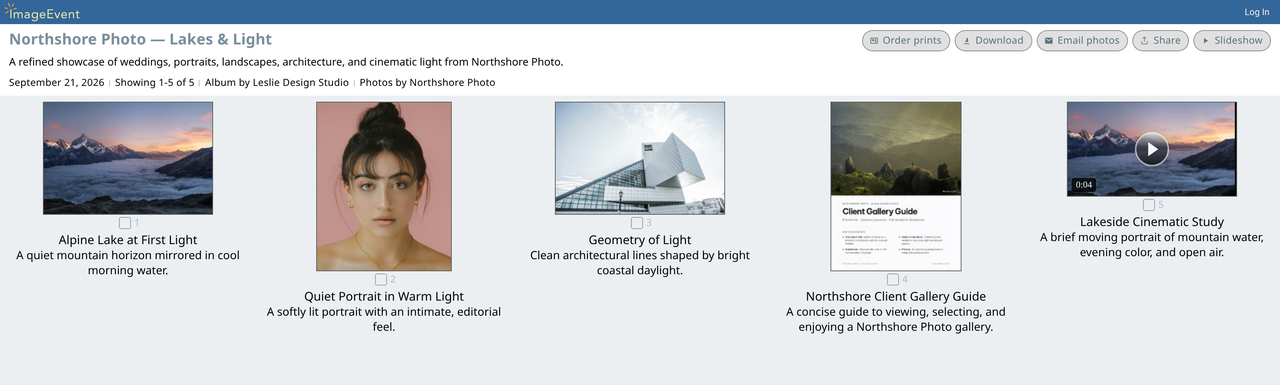
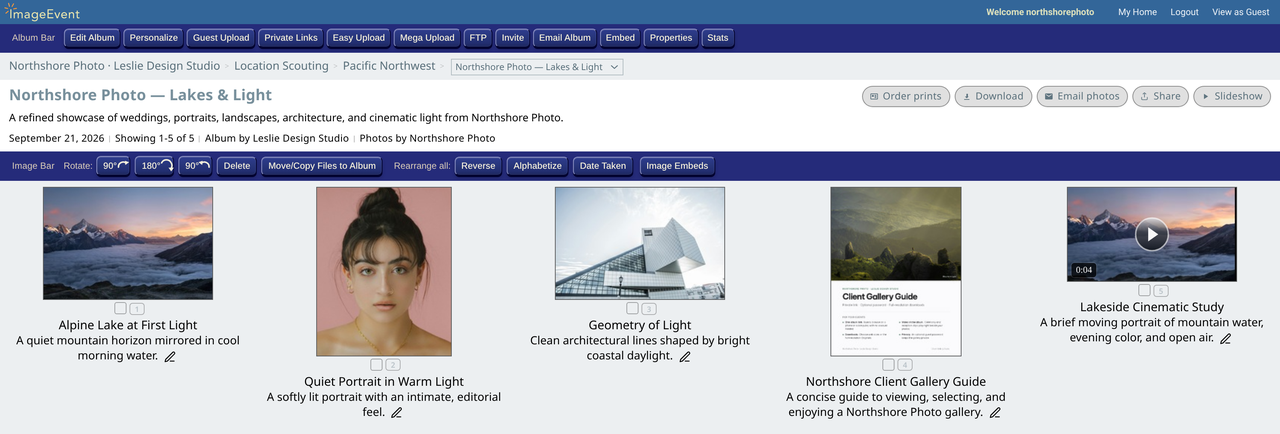
Owner's View and Guest ViewYour editing tools are only for you.
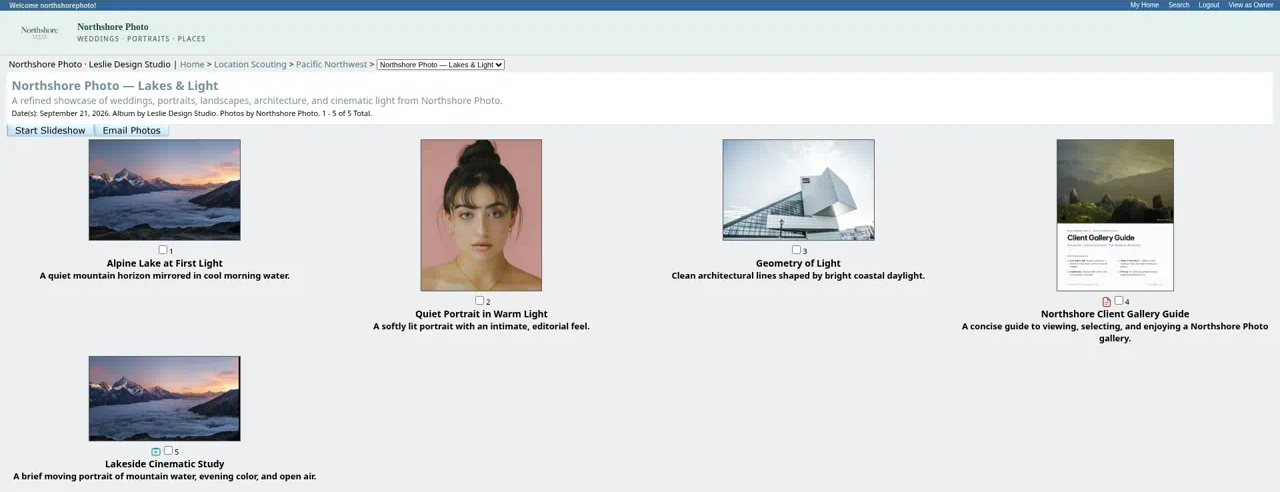
Click View as Guest at the top of any album to see exactly what guests see. Click View as Owner to switch back.
Album settingsThumbnail size, the grid, titles, slideshow, and more.
Everything below lives in Edit Album and applies to that album. Check Save these as defaults for the next album to reuse your choices.
Thumbnail size
- Small 1x
- 113×85
- Medium 1.5x
- 169×126
- Large 2x
- 226×169
- X-Large 3x
- 339×252
- XX-Large 4x
- 452×339
Also in Edit Album
- Columns and rows: Auto fits your screen, or set them yourself.
- Slideshow on open, Photo titles, and Descriptions under thumbnails.
- Photo comments and Guestbook / email.
- Guests edit titles/descriptions.
- Right click disable, which helps limit saving.
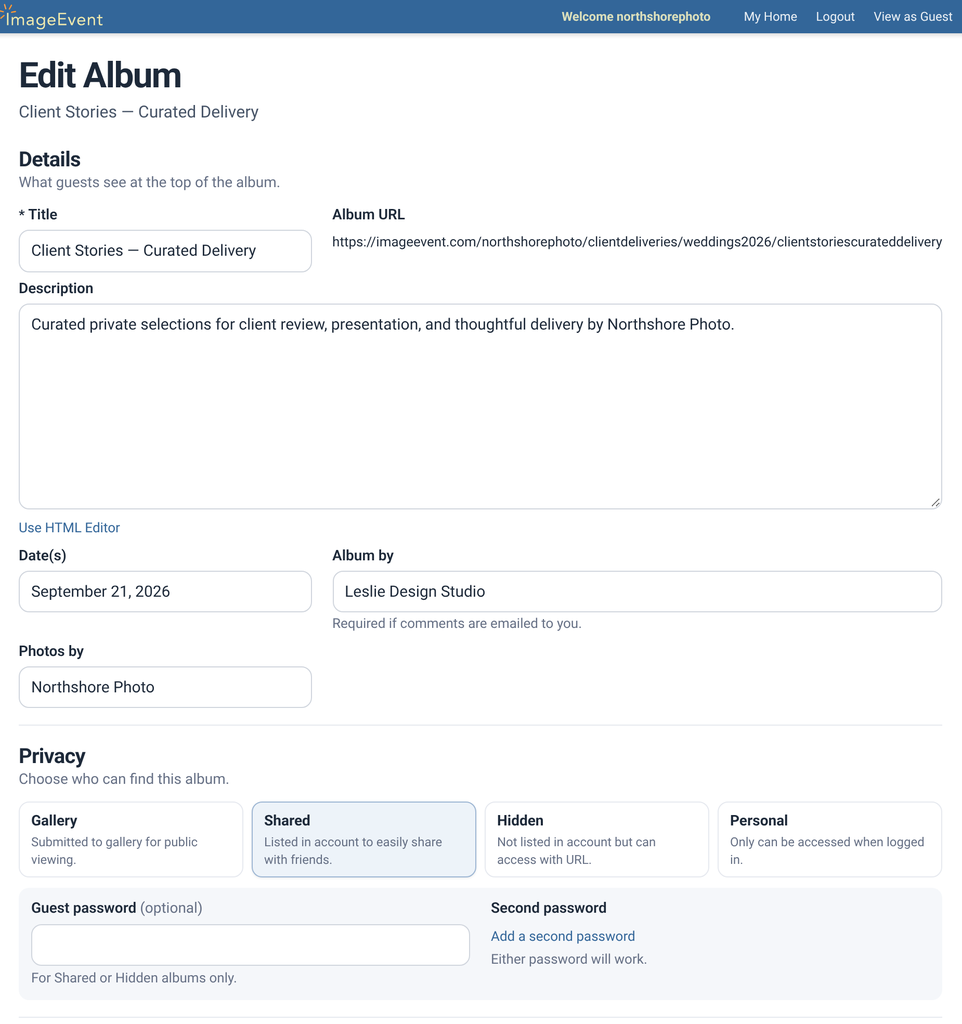
Guestbook and Send a CommentLet guests leave a note on the album, or send one just to you.
Turn on a Guestbook and guests can leave a note right on the album page. No account needed. Prefer private notes? Choose Email to me, and guests use Send a Comment instead. Their message comes straight to your inbox, and your address stays hidden.
- Open your album and click Edit Album.
- Under Guests, set Album comments to Guestbook or Email to me. Email to me also needs an Album by name.
- Click Save Changes.
What guests see
- Sign Guestbook: a name, an email, and a message. Their email is never shown.
- The newest entries on the album, with See more entries for the rest.
- A quick Verify you are human check that keeps out spam.
- It works on Private Links too, without showing your username.
Your controls
- Edit or delete any entry, on the album or in the full guestbook.
- In Global Settings, under Guestbook: show it Above photos or Below photos, and choose who gets Guestbook email alerts: you and guests who opted in, only you, or no one.
Video in your albumsClips play right beside your photos.
Videos sit in the album grid with your photos and play in place, with speed (0.2× to 2×), fullscreen, and picture-in-picture.
ImageEvent prepares viewing sizes from what you upload. See how video sizes follow your upload. Upload an HDR or Dolby Vision clip and ImageEvent always makes an HDR10 version too.
Open Video Properties to see the sizes for any clip.
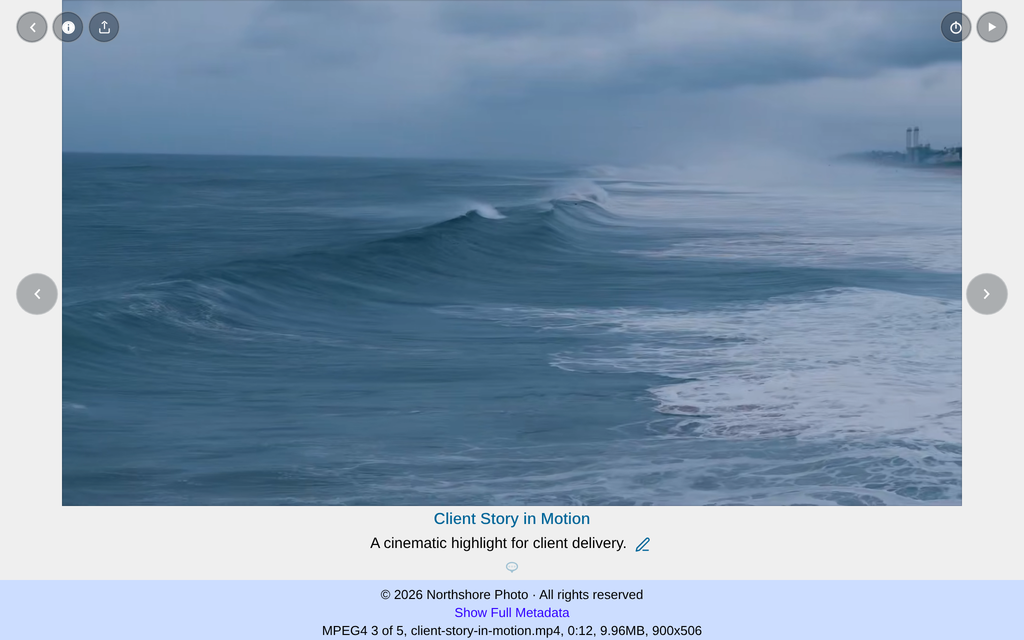
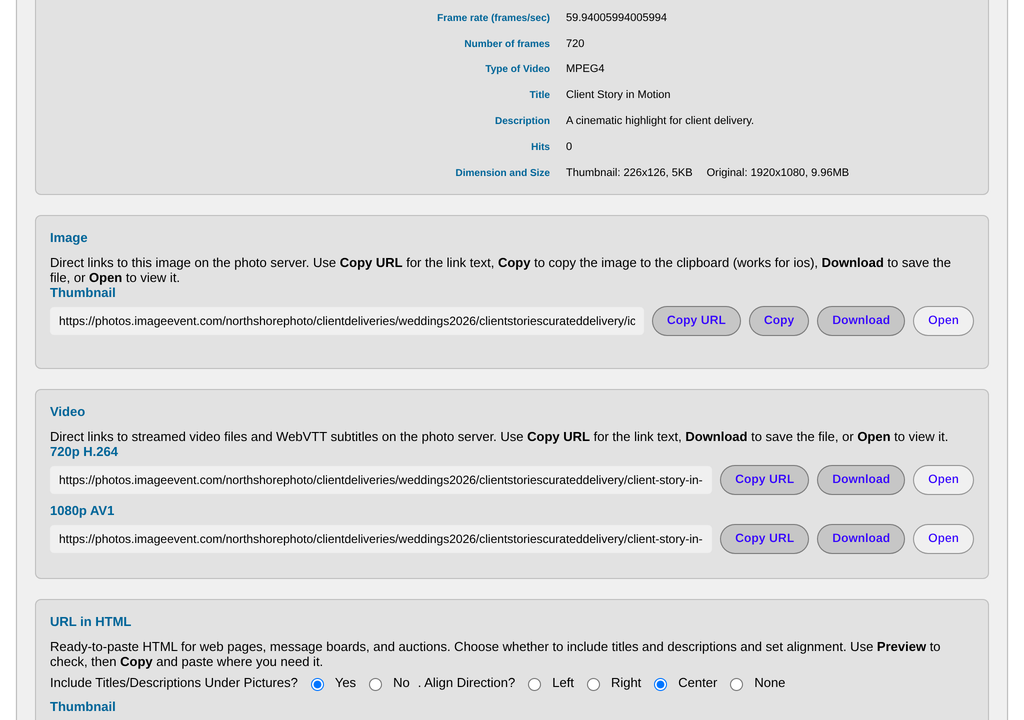
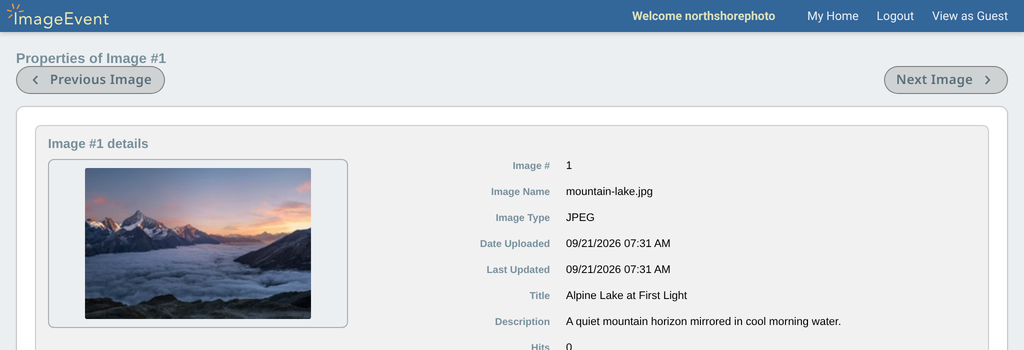
Image PropertiesEvery size, with its link, dimensions, and file size.
Open Image Properties from any photo to see each size, from Thumbnail to Original, with its dimensions and file size.
- Copy URL, Copy, Download, or Open any size.
- Ready-made HTML and message-board code for the photo. More in Embed Album.
When a guest opens a photo (Auto viewer)Auto, Pop-up window, One photo per page, or Large photo + thumbs.
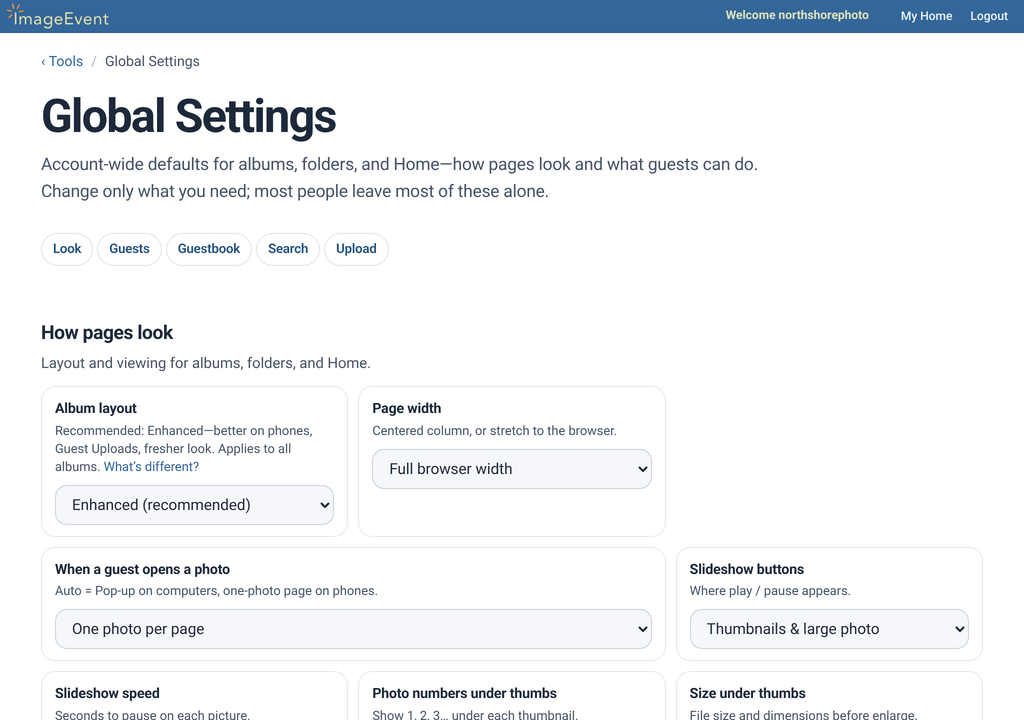
Choose how a thumbnail opens for your whole account in Global Settings → When a guest opens a photo.
- Auto — Pop-up on computers (picture in its own window). Photo on phones and tablets (same tab, no new tab).
- Pop-up window — Always opens a window sized to the picture.
- One photo per page — Always one picture per page in the same tab.
- Large photo + thumbs — Large picture with thumbnails underneath.
- Why Auto. Computers get a pop-up sized to the picture, and phones and tablets get one photo per page, so each visitor gets the best fit with no setting to change.
- Open Global Settings (home menu or Tools).
- Under How pages look, set When a guest opens a photo.
- Choose Auto if you want the best fit for both desktop and mobile guests.
The classic lookPrefer the original ImageEvent layout? Switch once.
New albums are ready to share as they are. If you prefer the classic ImageEvent look, change it once for your whole account. It applies to the albums you have and any you add later.
- Open Global Settings (home menu or Tools).
- Go to How pages look → Album layout.
- Choose Original.
Viewing sizes, Other Sizes, and the Original file work the same in either look. Guest Uploads works with the Enhanced layout, so keep Album layout on Enhanced if you use it.
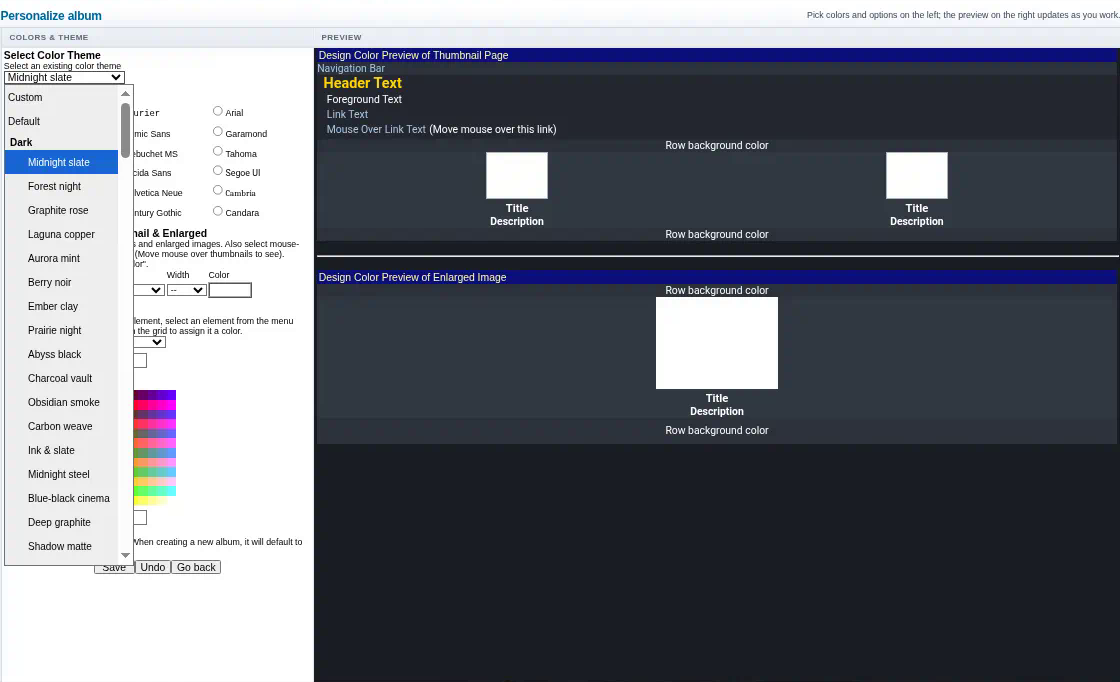
Color themes151 ready-made themes for albums, folders, and Home.
- In your album, click Personalize.
- Choose a theme under Select Color Theme. The preview updates as you go.
- Want it for every new album? Check Set as default album colors.
The same 151 themes are there for folders and your Home page. Or choose Custom to set your own fonts, borders, and colors. Try a theme.