
Privacy & sharing
Private when you want it.
Choose who can find each album, add a guest password, and see exactly what guests see before you share the link.
You decide who sees what.
A password for guests.
Give an album a guest password, plus a second one for another group. Either one works.
Guest passwords
See it as a guest.
View as Guest shows the album exactly as your guests will see it.
Compare the views
A link or a QR code.
Share an album, a folder, your Home page, or a single photo or video.
Ways to share
Downloads, your call.
Downloads, sharing, and guest email each have their own switch.
Guest controlsFour privacy levels.
Pick one for each album. Tap a level to see who can find it.
Anyone can find it.
It’s listed in the public gallery.
In ImageEvent’s words: “Submitted to gallery for public viewing.”
Just for you.
It opens only when you’re signed in.
In ImageEvent’s words: “Only can be accessed when logged in.”
The quoted descriptions are ImageEvent’s own, from Edit Album → Privacy & passwords.
How it works.
Create an album
Your uploads go into an album, so start here.
Set privacy
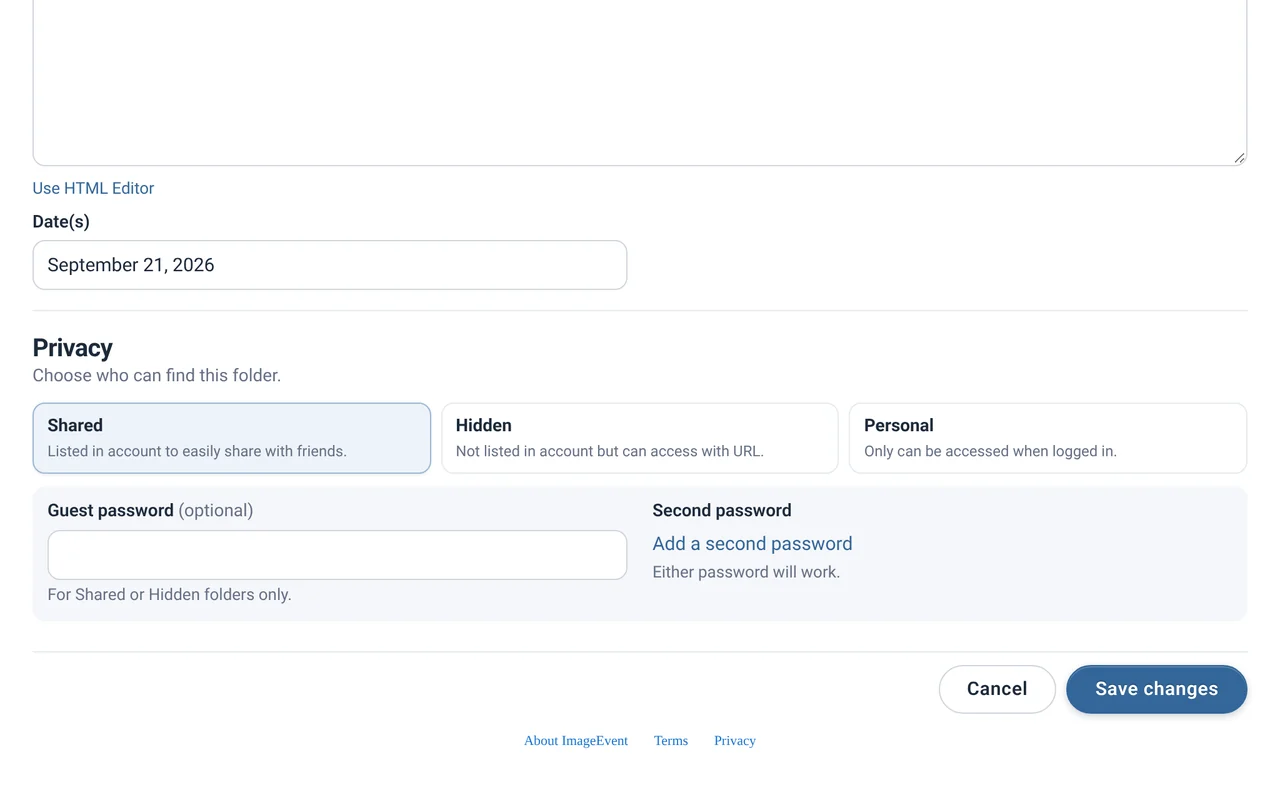
In Edit Album, pick Gallery, Shared, Hidden, or Personal.
Add a password
Optional, for Shared or Hidden. Add a second one for another group.
Check, then share
Use View as Guest, then send the link or show the QR code.
All the options.
Every setting, with step-by-step how-tos.
Privacy levelsGallery, Shared, Hidden, or Personal, for each album.
- Open your album and click Edit Album.
- Under Privacy & passwords, find Select Level of Privacy.
- Choose Gallery, Shared, Hidden, or Personal.
- Click Update Album.
Gallery albums also need a Public Gallery Category. Folders offer Shared, Hidden, and Personal.

Guest passwordsAdd one for guests, and a second for another group.
Shared and Hidden albums can have an optional guest password.
- In Edit Album → Privacy & passwords, type a Guest Password.
- Want a second group to have its own? Click Need Second Password? and choose Add Password.
- Click Update Album.
In ImageEvent’s words: “Add a second guest password to share with 2 groups. Either guest password will work.”

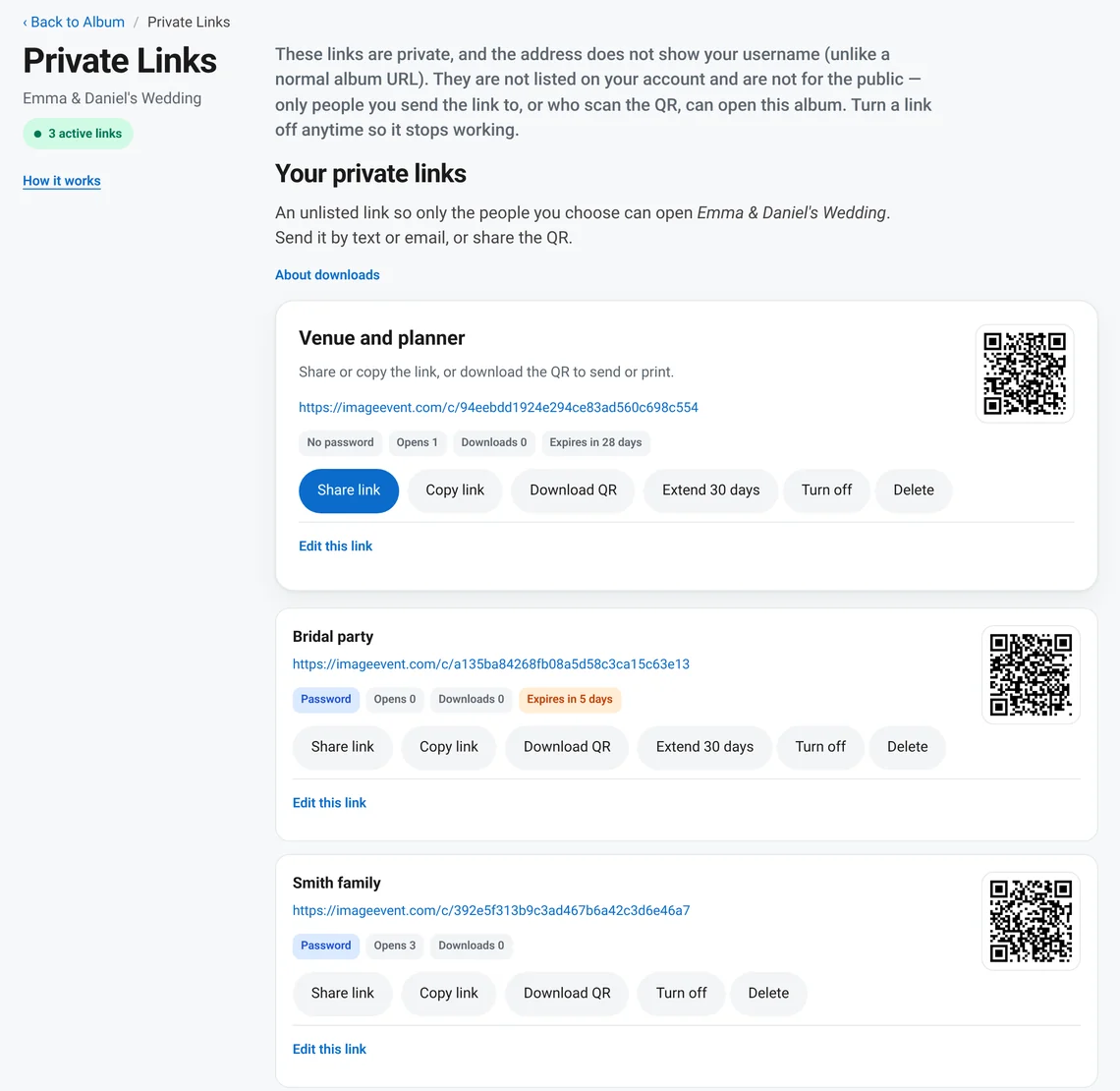
Private LinksShare an album with only the people you choose, and turn it off any time.
A Private Link is an unlisted web address that is very hard to guess: imageevent.com/c/ followed by 32 random characters, with no username in it. Send it to the people you choose, add a password if you like, choose when it expires (or never), and turn it off when you are done. Photos are served from a private host that is not indexed. Visitors don’t need an ImageEvent account.
- Open your album and click Private Links in the Album Bar.
- Under Create a private link, type a Label that only you see. Add a Password if you like, choose whether Downloads are on, and set an optional expiry if you like. Click the create button.
- Click Share link or Copy link and send it, or click Download QR to print or send the QR code.
- When you are done, click Turn off and the link stops working. Delete removes it. Edit this link changes its settings.
- As many as you need. Make one link for each group, like “Smith family” or “Bridal party”. Each link has its own label and can have its own password.
- Track each link. Each link shows how many times it was opened and its number of downloads, so you can see how it is being used. It also shows its label and whether it has a password.
- What it protects. A Private Link opens only the album it was made for. The person who has it can’t get to your other albums, and the address doesn’t show your username.
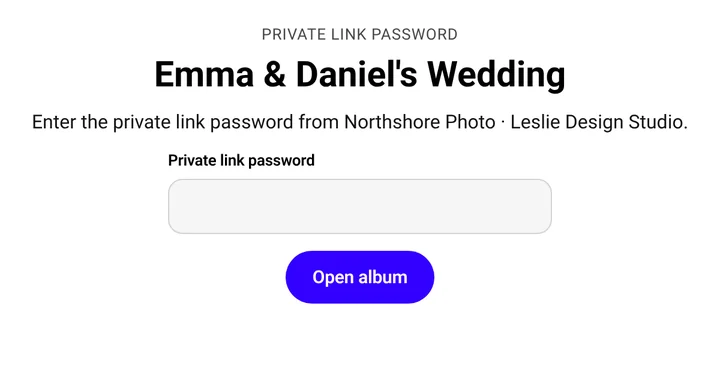
- What visitors do. They open the link, enter the password if there is one, and see your album. When downloads are on, they can use Download all.
- Send it by email. Email Album and Invite Friends can send a Private Link, or create one right there. About Email Album
- From the Share panel. Manage private links opens the same page.
- Choose a password that is different from your account password.
Private Links for a folderShare a whole folder in one link.
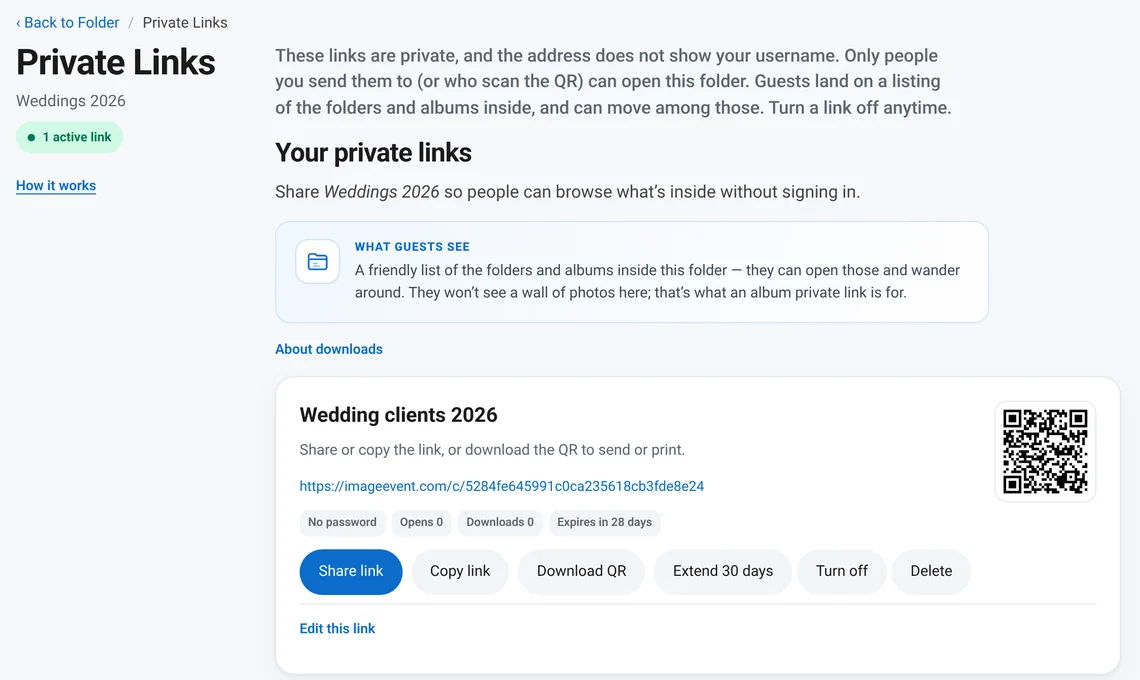
Put a Private Link on a folder, for example a client’s folder. Visitors land on a list of the folders and albums inside it and can open the ones they want. They don’t sign in, and they don’t see a wall of photos on that page. A folder link shows the list. An album link shows the photos.
- Open the folder and click Private Links.
- Type a Label that only you see, add a Password if you like, and click Create private link. You get a link and a QR code right away.
- Copy or share it, or download the QR code.
- Turn the link off when you are done.
To share one album instead, use Private Links on the album. Folders themselves can also be Shared, Hidden, or Personal. Folder privacy
Folders and your Home pageProtect a whole folder, or your Home page.
Folders use the same choices: Shared, Hidden, or Personal, with an optional guest password and a second one. Find them in the folder’s Edit form, then click Update Folder.
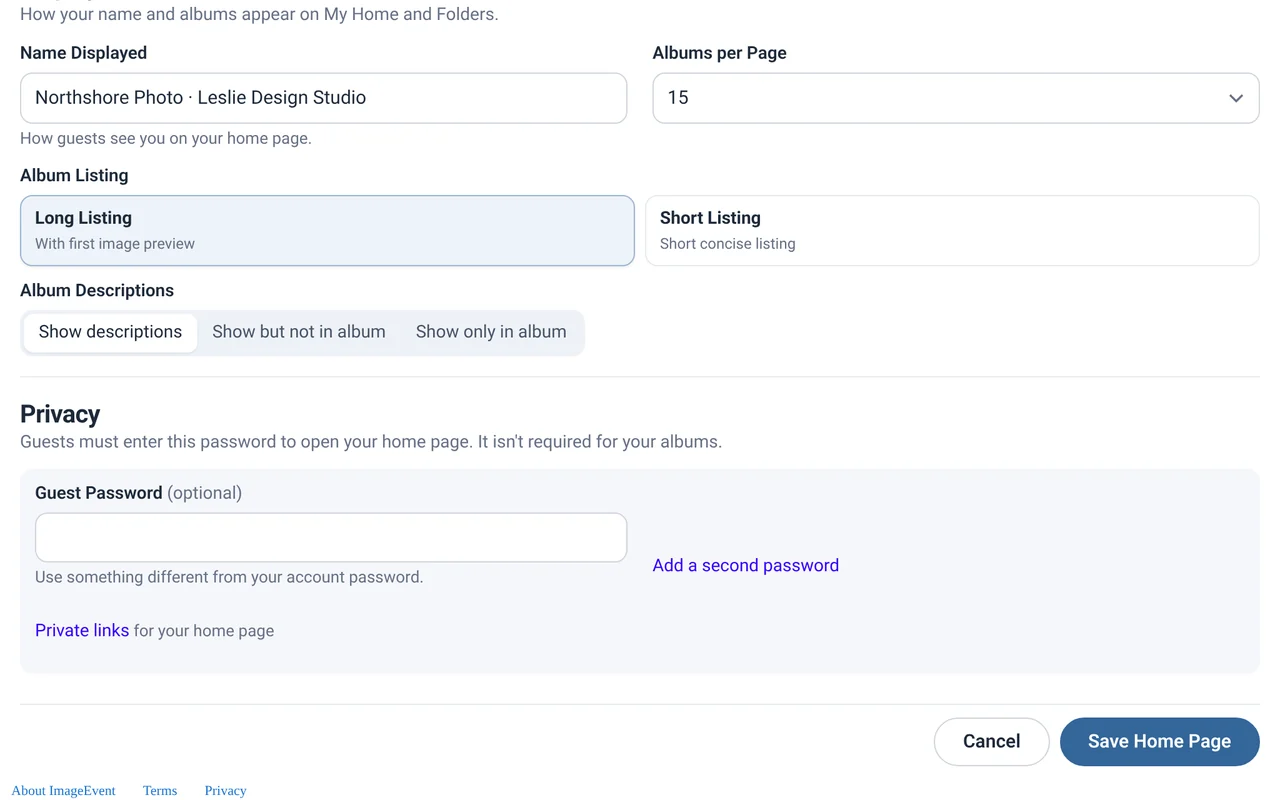
Your Home page has its own guest password in Edit Home Page → Security. It covers your home page only, not individual albums. Use a password different from your account password.
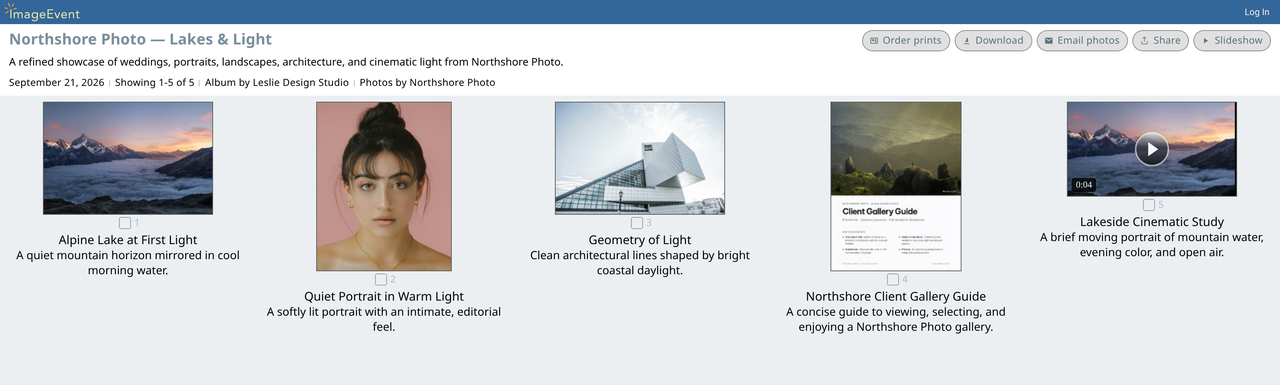
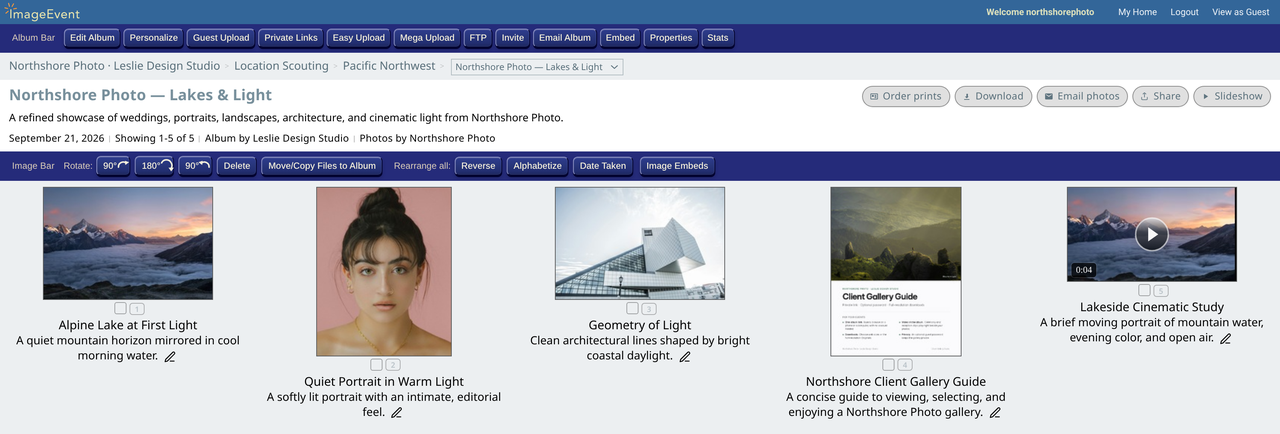
Owner's View and Guest ViewCheck exactly what guests will see.
Click View as Guest at the top of any album to see it the way guests do. Click View as Owner to switch back.
Share links and QR codesShare panels for Home, folders, albums, photos, and videos.
- Open Global Settings.
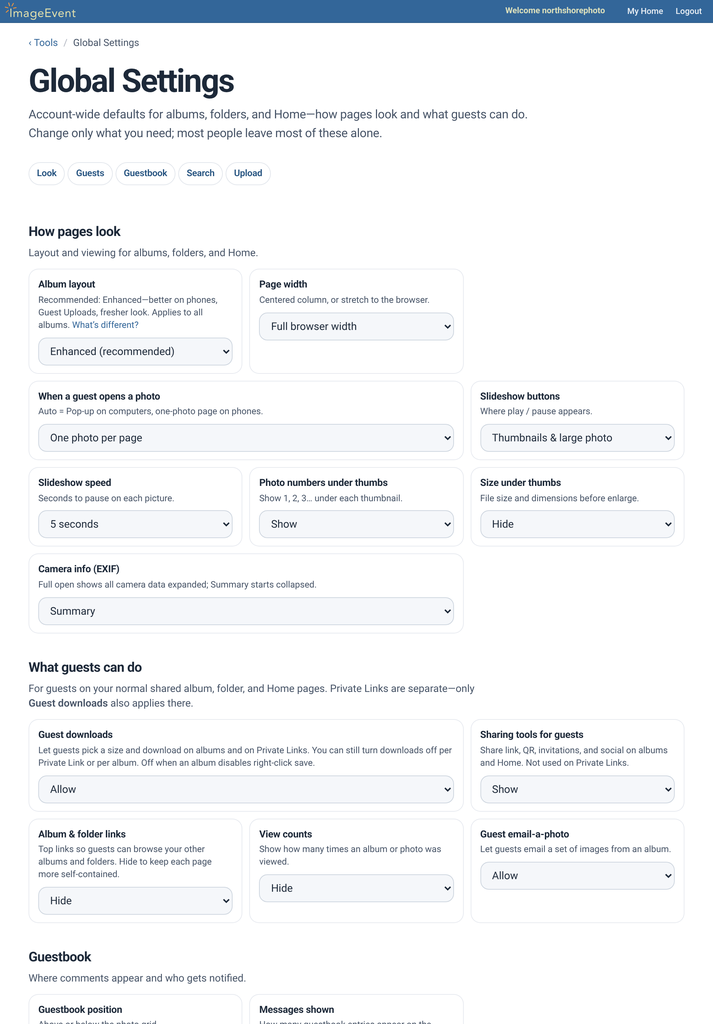
- Set Sharing tools for guests to Show.
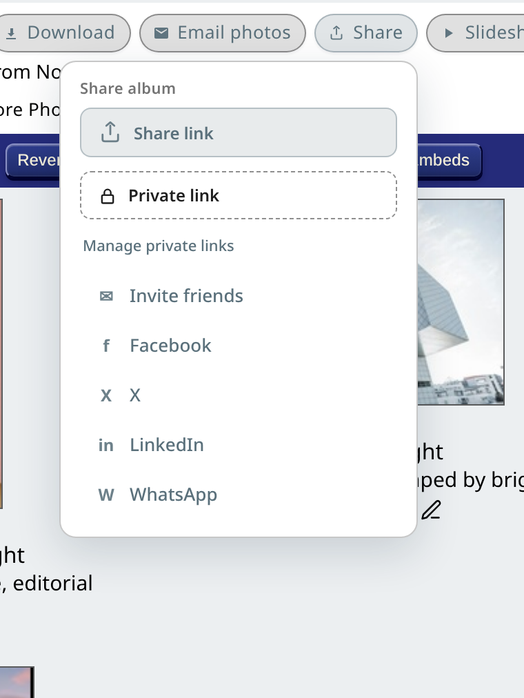
Then Share opens a panel with a link wherever you are: Home, a folder, an album, a photo, or a video.
- Albums, folders, and Home: Share link, Invite friends, Facebook, X, LinkedIn, and WhatsApp. You also see Private link and Manage private links.
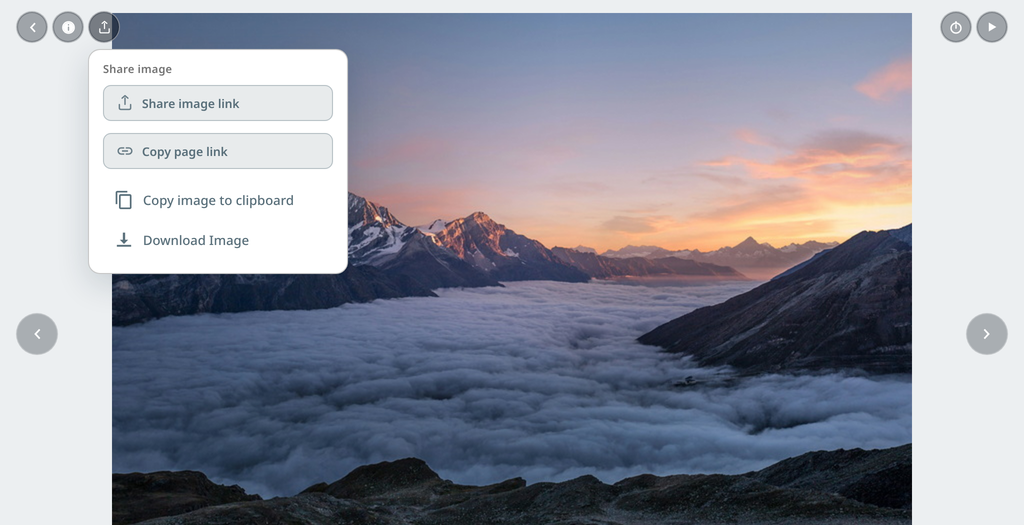
- A photo or video: Share image link, Copy page link, Copy image to clipboard, and Download Image.
- QR codes: click Download QR on a Private Link, an Upload link, or a TV link.
Find it in Global Settings under What guests can do.
Downloads and guest emailSeparate switches, so you decide each one.
Three settings in Global Settings work on their own:
- Sharing tools for guests: links, invitations, and social.
- Guest downloads: guests can pick sizes to download. It’s turned off for albums where right-click save is disabled.
- Guest email-a-photo: shows Email photos to guests.
For a single album, Right click disable in Edit Album helps limit saving.
Embedded albumsAn embed follows the album’s privacy.
When you put an album on your website with Embed Album, the album’s own privacy still applies. Match it to the people who will visit that page.
Where to find it: in the album, click Embed in the Album Bar.