
Organize
Everything in its place.
Group albums into folders by client, season, or anything you like. Move photos where they belong, and search your whole library.

A library that stays tidy.

Folders inside folders.
Nest folders and albums as deep as your work needs.
Folders
Move or copy photos.
Send photos to the right album without uploading again.
Move and copy
Put it in order.
Reverse, alphabetize, or sort by the date each photo was taken.
Sorting
Find anything.
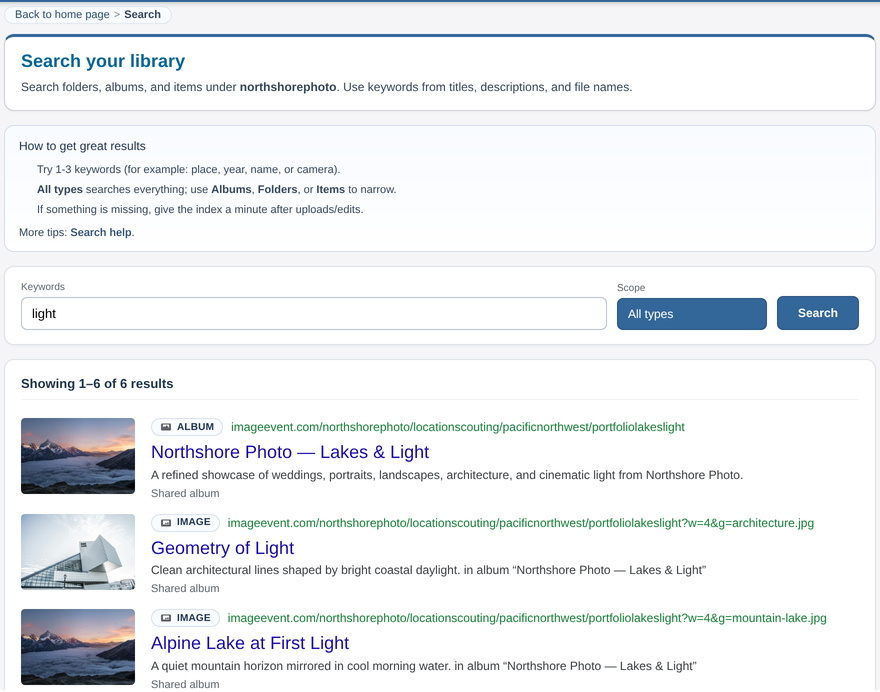
Search matches whole words in titles, descriptions, and file names across your library.
SearchYour whole library, at a glance.
Folders hold albums and other folders. Here’s a real Home page, opened up.
Club & CommunityFolder
- Meet 03 — Field DayAlbum
Business ArchivesFolder
Season 2026Folder
- Studio Archive — Full ResolutionAlbum
Location ScoutingFolder
Pacific NorthwestFolder
- Northshore Photo — Lakes & LightAlbum
- Scout — Alpine Lake OverlookAlbum
Marketplace ListingsFolder
Active LotsFolder
- Lot 2147 — Mid-Century DeskAlbum
Client DeliveriesFolder
Weddings 2026Folder
- Client Stories — Curated DeliveryAlbum
- Cinematic Motion — HDR StoriesAlbum
- Brand Assets — Northshore PhotoAlbum
- Studio Notes & ResourcesFolder
Studio Projects & Client WorkFolder
- Client SelectsFolder
- Studio Toolkit — Mixed MediaAlbum
The Northshore Photo library. Click a folder to open or close it.
How it works.
Create a folder
Name it for a client, a season, or a project.
Create albums inside
Uploads go into albums, so add one or more to the folder.
Upload
Add photos and video to each album.
Keep it tidy
Rearrange, move, or search whenever you need to.
All the options.
Every setting, with step-by-step how-tos.
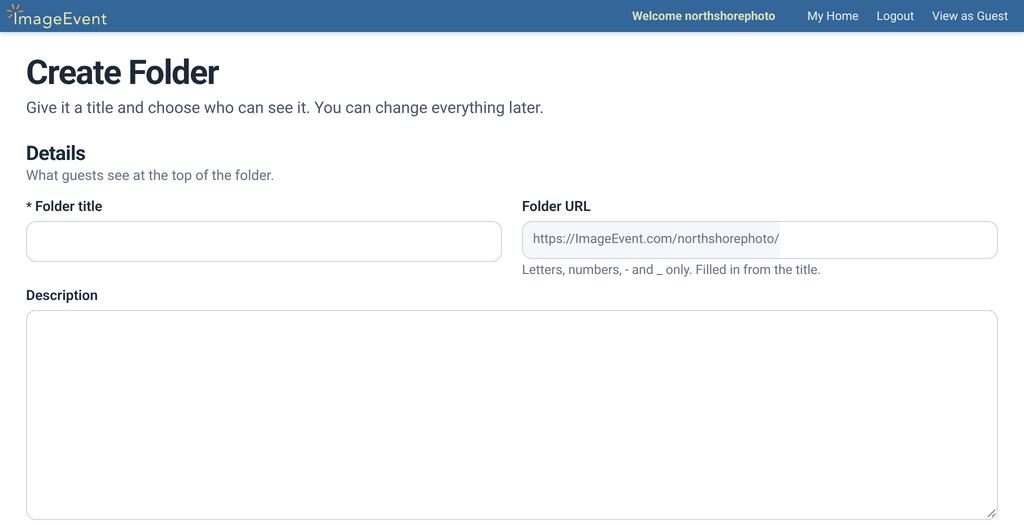
FoldersCreate a folder, then nest folders and albums inside it.
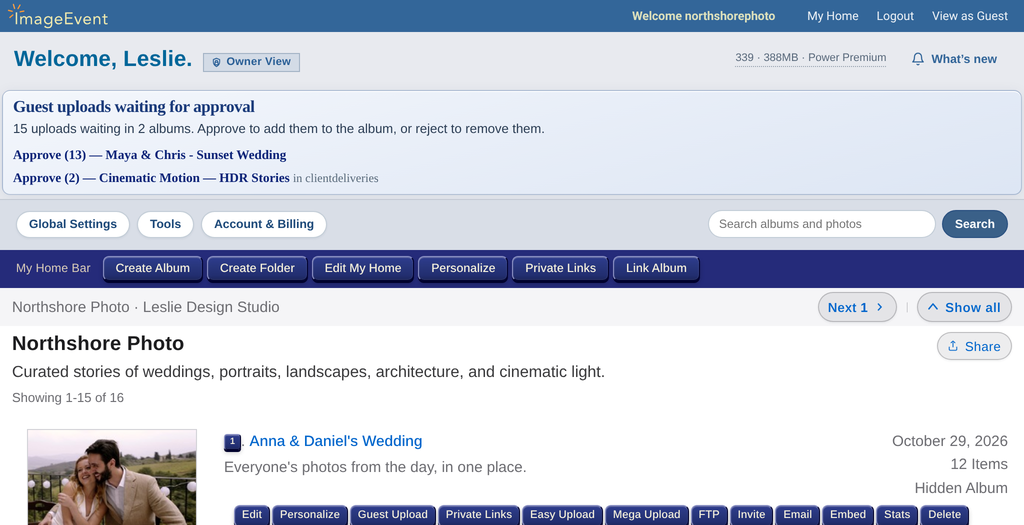
- On your Home page, click Create Folder.
- Add a Folder title, a Folder URL, a description, and dates if you like.
- Choose its privacy: Shared, Hidden, or Personal, with an optional guest password.
- Click Create Folder.
Choose the URL with care. It’s set when you create the folder. To change the rest later, open the folder’s Edit form and click Update Folder.
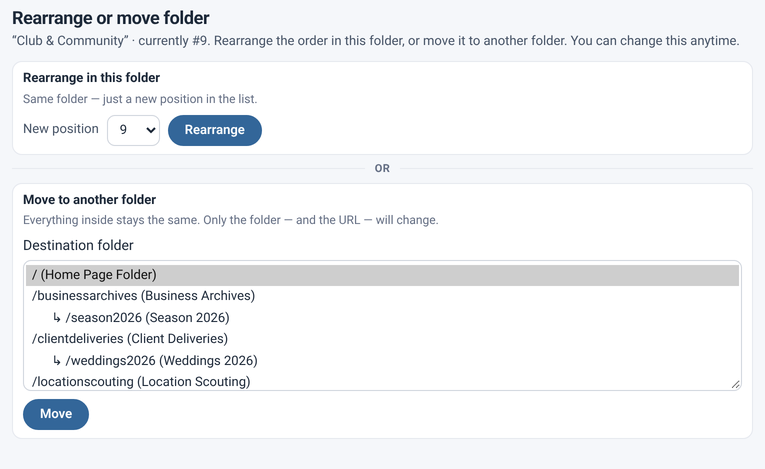
Rearrange or move albums and foldersChange the order on Home, or move into another folder.
- On Home, click the number next to a folder or album.
- To reorder, choose Select new position #, then OK.
- To move it, choose a folder under Select folder to move to, then OK.
When you move something, its URL changes to match the new folder.
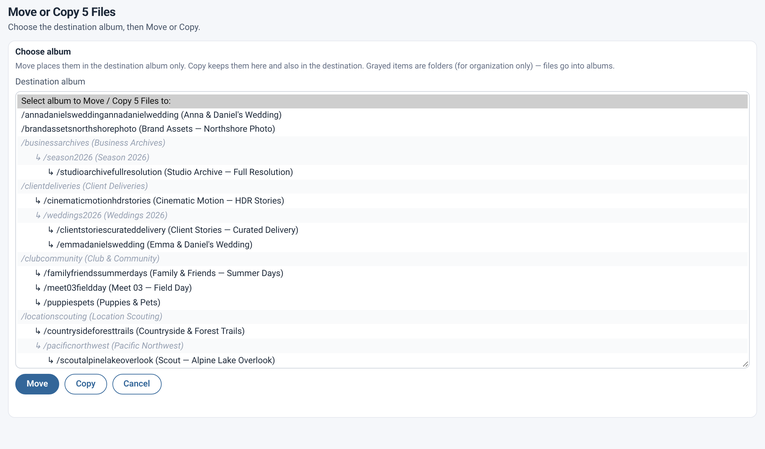
Move or copy photosSend photos to another album without uploading again.
- In the album, check the photos you want, or all of them.
- Click Move/Copy Images to Album in the Image Bar.
- Pick the destination album, then click Move or Copy.
Sort an albumReverse, Alphabetize, or Date Taken.
The Image Bar can reorder a whole album at once. Each one asks you to confirm first.
- Reverse: the first and last photos swap, and so on through the album.
- Alphabetize: orders photos by file name.
- Date Taken: uses each photo’s original EXIF date when it’s available, or the stored creation date.
Where to find it: open the album and use Rearrange all in the Image Bar.
Link AlbumShow one album in more than one place.
Use Link Album on your Home page to place an album in more than one place without making a copy.
Where to find it: on your Home page, click Link Album in the My Home Bar.
Search your libraryFind albums, folders, and photos by keyword.
- On Home, click Search.
- Type your Keywords.
- Narrow the Scope if you like: All types, Albums, Folders, or Items. Then click Search.
Search matches whole words in titles, descriptions, and file names.
Delete photosClear out what you don’t need, with a check first.
- Check the photos or videos in the album.
- Click Delete in the Image Bar.
- Confirm with Yes, delete, or click Cancel.
ImageEvent asks first, because deleting can’t be undone.